-Transparent.png?width=150&height=113&name=Airswift-Primary-Logo-(WhiteText)-Transparent.png)
Accessing timesheets for review
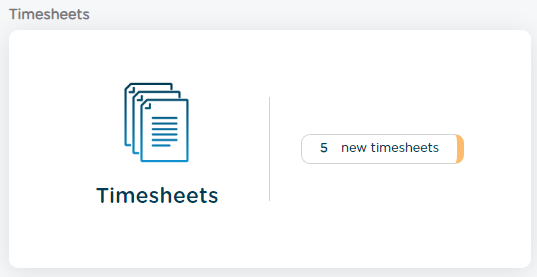
1. Access your timesheet management dashboard where you can view all timesheets requiring your approval. You can access by clicking the timesheet card or by clicking the three lines and selecting ‘Timesheets’.
2. Look for timesheets with ‘Pending’ status is the timesheet list. These are timesheets awaiting your approval decision.
3. Click on a pending timesheet row to open it for a detailed review
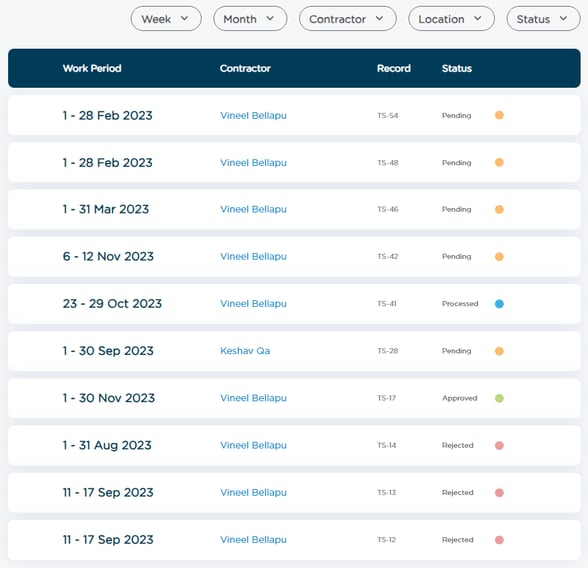
Note: You can filter timesheets by week, month, contractor, location, and status
Tip: Clicking on the "New Timesheets" will open just the timesheets that are pending approval
Reviewing timesheet details
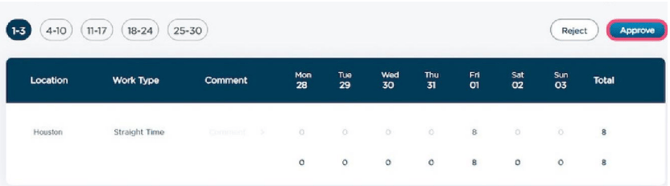
1. Examine all timesheet details including: work period dates, location(s) worked, work types (Straight Time, Overtime, PTO), daily hours for each day of the week, comments (if any), total hours summary.
2. Review any attachments submitted with the timesheet (receipts, documentation, etc.).
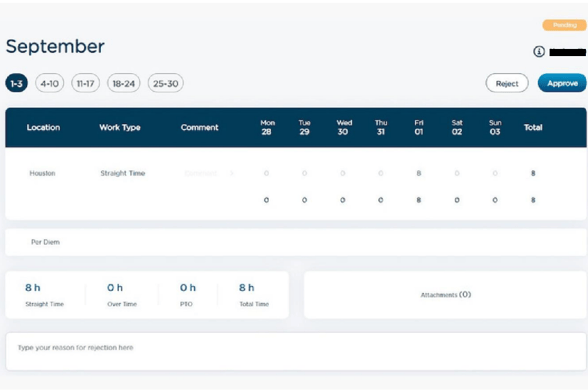
Tip: If a contractor has submitted an attachment with the timesheet, it will be shown in the attachments section at the bottom of the timesheet.
Make approval decision
1. If approving:
a. Click the ‘Approve’ button
b. Confirm your approval decision
c. The system will automatically display ‘Timesheet successfully approved!’ confirmation
d. Click ‘Go to dashboard’ to return to the main view
2. If rejecting:
a. Click the ‘Reject’ button
b. Enter your reason for rejection in the text field that appears (provide clear, specific feedback about what needs to be corrected)
c. Confirm the rejection
d. A window will pop up, confirming the timesheet has been rejected. The timesheet will then be sent back to the contractor with the rejection comment.
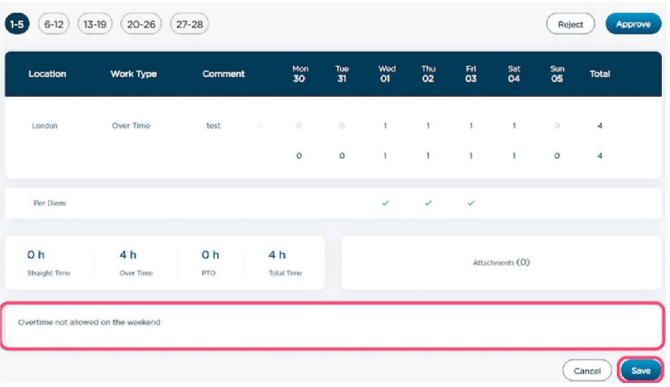
Tip: Rejection comments will be saved to the timesheet so you can review them once the contractor has made a change.
After approval:
- Timesheet status changes to "Approved"
- Contractor receives approval notification
- Timesheet is sent to Airswift for processing
- Return to dashboard to review additional pending timesheets
After rejection:
- Timesheet status changes to "Rejected"
- Contractor receives rejection notification with your feedback
- Contractor can make corrections and resubmit
- Corrected timesheet will appear as "Pending" for re-review
