-Transparent.png?width=150&height=113&name=Airswift-Primary-Logo-(WhiteText)-Transparent.png)
Accessing a new timesheet
1. Open your new timesheet by clicking the plus sign (+) in the corner of the ‘Your Timesheets’ card.
2. Select your client name from the dropdown menu.
3. Select your job title for this timesheet, then click ‘Next’
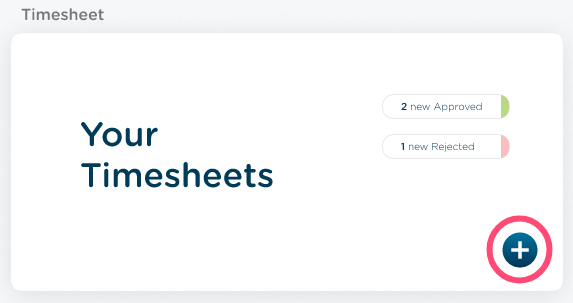
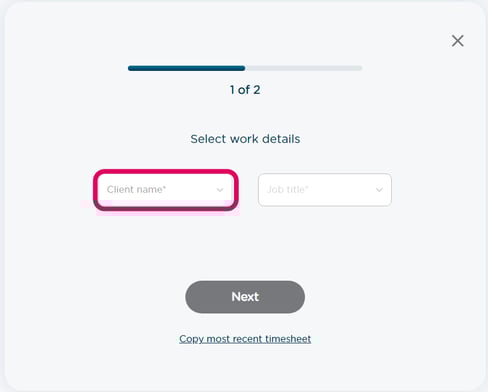
Tip: If you work for only one client or have only one position, you’ll see only one option I the respective dropdown menus.
Entering remaining timesheet weeks
1. Enter your work location in the ‘Location’ field (if you worked in multiple locations, an additional line can be added later for other locations by clicking the + icon).
2. Select the appropriate work type from the dropdown menu. Available work types are as follows:
a. Straight time- regular working hours
b. Overtime- hours worked beyond regular time
c. Onshore ST- onshore straight time
d. Onshore OT- onshore over time
e. Offshore OT- offshore over time
f. PTO- paid time off
g. Leave- various types of leaves of absence
h. Holiday- holiday time
i. Bereavement
j. Business trip – business travel
k. Medical / Sick leave – health related time off
l. Mobilization – time spent mobilizing to project site
m. Non-Paid- not paid time off
n. Public Holiday Worked – time worked during holidays
o. Rest Time – break from work
p. On site – time worked on site
q. Travel – time incurred during work travel
r. Work From Home – time worked from home office
3. Enter the days worked throughout the week. Time can be submitted as full days by inputting a ‘1’ or indicate no work by leaving blank or entering a ‘0’.
4. If you need to claim per diem allowances:
a. Click the arrow to expand ‘Per Diem’ section
b. Check the boxes for days where per diem applies
c. Use the scroll bar to navigate through all applicable days
5. If you need to add additional timesheet lines:
a. Click the (+) button to add a new line
b. Configure the new line with different location, work type, projects, or comments
c. Enter time data for the new line following the same process
6. Click ‘Save’ to complete your entry
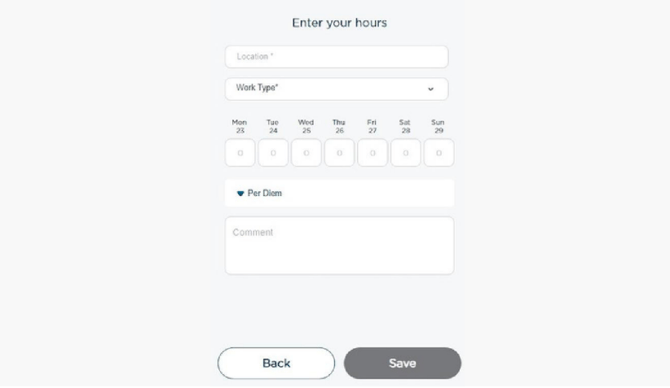
Note: Use the comment field to specify project codes, reasons for leave, or other relevant details that can help clarify your time entries.
Submitting your timesheet
1. Save your progress by clicking ‘Save Week’ to complete the timesheet later
2. Edit any field by clicking directly on it and making necessary changes
3. When you have completed all required weeks, click ‘Submit Week’
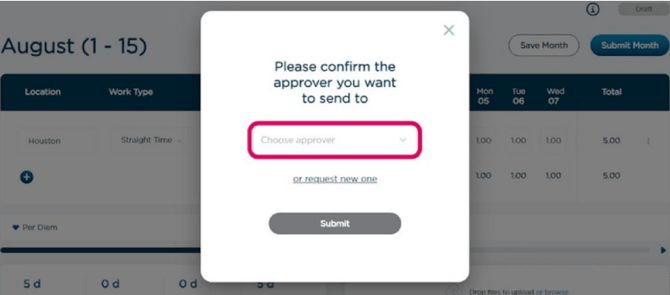
4. Select your approver from the dropdown menu (if your approver isn’t listed, click ‘Request new one’)
5. Click ‘Submit’ to send the timesheet for approval
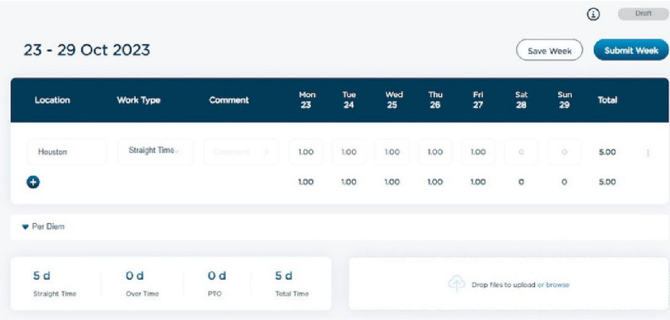
Note: To attach supporting documents to a timesheet, either drag and drop the file or click on "browse".
Status definitions
Status progression:
- Draft: timesheet saved but not submitted
- Submitted: timesheet has been sent to line manager for approval
- Approved: timesheet has been approved by line manager and sent to Airswift payroll
- Processed: timesheet has been approved by Airswift payroll and will be paid during the payroll run
- Rejected: timesheet has been returned for corrections (you will receive an email notification when this occurs)
